Urgent request: DejaOffice Files location after OS update

Collapse
X
 
  • Time
  • Show
Clear All
new posts
  • DejaJeff
    Member
    • Jul 2017
    • 95

    #1

    Urgent request: DejaOffice Files location after OS update

    My phone recently updated from Android 12 to Android 13, and now I cannot seem to find/access the "com.companionlink.clusbsync/files" folder.

    I need access to the data in this folder, as its part of my critical personal backup routine on my device.

    If Google is now hiding this location from me as part on Android 13, let me know if I can change the DejaOffice data folder to an alternate location that will be accessible to me, via Settings -> Logging and Support Settings -> Database Storage Location. Please walk me thru the exact option to select (for Android 13) so that the entire Files folder is accessible to me either on the SD card or some other location:

    • Local Storage (New)
    • Emulated Storage
    • Local Storage (Legacy)

    Thanks in advance for help!

    Jeff
  • Thomas
    DejaOffice Team Member
    • Dec 2010
    • 3008

    #2
    Jeff,

    You can only see this folder via the PC when connecting a Cable and browsing to it. The build in Android File Explorer does not have access to the new folder where Android is requiring the data for apps be stored. For OS 13 you want the Local Storage New, which is still this folder "\Android\data\com.companionlink.clusbsync\fil es"
    - Lead QA

    Comment

    • DejaJeff
      Member
      • Jul 2017
      • 95

      #3
      Originally posted by Thomas View Post
      Jeff,

      You can only see this folder via the PC when connecting a Cable and browsing to it. The build in Android File Explorer does not have access to the new folder where Android is requiring the data for apps be stored. For OS 13 you want the Local Storage New, which is still this folder "\Android\data\com.companionlink.clusbsync\fil es"
      Thomas,

      Thanks for the explanation. Followup question...

      Where will the app's data reside for each of the other two options below (in red)?

      • Local Storage (New)
      • Emulated Storage
      • Local Storage (Legacy)


      Is there a setting to have the app data in the SD card? I know it's not recommended, I'm willing to accept the risk.

      Jeff
      Last edited by DejaJeff; 11-01-2023, 09:35 AM.

      Comment

      • Thomas
        DejaOffice Team Member
        • Dec 2010
        • 3008

        #4
        Jeff,

        If you have a really old android on an old build, it would show as the Local (legacy), but you can't switch to this once you have the new OS\DejaOffice builds, that option is just to give older installs a way to migrate to the new folder. This was originally Phone\clusb but Android no longer allows access here for apps.

        Emulated is completely hidden and only applies when someone does not allow Storage Permission when installing, this allows them to still use DejaOffice but not need folder access to the normal App's storage location.
        - Lead QA

        Comment

        • DejaJeff
          Member
          • Jul 2017
          • 95

          #5
          Originally posted by Thomas View Post
          Jeff,
          Emulated is completely hidden and only applies when someone does not allow Storage Permission when installing, this allows them to still use DejaOffice but not need folder access to the normal App's storage location.
          Is it possible for me to select this, and if I do will I have access to the data?

          Alternatively, is there any way for the data to reside on the SD card?

          Comment

          • Thomas
            DejaOffice Team Member
            • Dec 2010
            • 3008

            #6
            Jeff,

            The only way to access the data file in this way is if you email yourself a backup, you will not be able to see the files via the file explorer.

            You can move the DejaOffice data to the SD via the storage option in the Android > Settings > Apps > DejaOffice, but we do not recommend this as it can cause issues with the Native Sync.
            - Lead QA

            Comment

            • DejaJeff
              Member
              • Jul 2017
              • 95

              #7
              Originally posted by Thomas View Post
              Jeff,
              You can move the DejaOffice data to the SD via the storage option in the Android > Settings > Apps > DejaOffice, but we do not recommend this as it can cause issues with the Native Sync.
              Can you walk me through this on Android 13? I'm having difficulty seeing the storage option at Android > Settings > Apps > DejaOffice. I see "Storage and cache", but no option to move the data.

              Screenshot link: https://www.headquarters.earth/Temp/...26-48-358.jpeg

              I understand and accept the risk.


              Comment

              • Thomas
                DejaOffice Team Member
                • Dec 2010
                • 3008

                #8
                Hmm, are you sure there is an SD card in the phone? In this same menu at the top I get an option that says "Storage Used - Internal" with a "Change" option. I am also on Android 13.
                - Lead QA

                Comment

                • DejaJeff
                  Member
                  • Jul 2017
                  • 95

                  #9
                  Originally posted by Thomas View Post
                  Hmm, are you sure there is an SD card in the phone? In this same menu at the top I get an option that says "Storage Used - Internal" with a "Change" option. I am also on Android 13.
                  Yes, I have an SD card installed, and use it regularly.

                  In the screenshot I provided, it also says "External Storage 1 item". I assume that's the autobackup path that I had previously set up by long-pressing "Backup Database" in the Logging and Support Settings.

                  Any other clues on how I can get DejaOffice data to be stored on the SD?

                  Comment

                  • Thomas
                    DejaOffice Team Member
                    • Dec 2010
                    • 3008

                    #10
                    When you installed that would be the storage permission to access the folder you set as a backup.

                    What model of Android is this? IE Samsung something, or Pixel, or ..
                    - Lead QA

                    Comment

                    • DejaJeff
                      Member
                      • Jul 2017
                      • 95

                      #11
                      Originally posted by Thomas View Post
                      When you installed that would be the storage permission to access the folder you set as a backup.

                      What model of Android is this? IE Samsung something, or Pixel, or ..
                      Phone: Moto G Stylus 5G (XT2215-4) (2022)
                      Android 13

                      Up until last week it was running Android until it received an OTA OS update from Android 12 to 13.

                      Comment

                      • Thomas
                        DejaOffice Team Member
                        • Dec 2010
                        • 3008

                        #12
                        Jeff,

                        From what I am reading they hid this option on the Stylus:

                        https://www.reddit.com/r/MotoG/comme...micro_sd_card/

                        It seems you can do it but you have to enable it in Developer options and turn on "allow apps on external". I'm sure a quick Google of "Turn on Developer options on Motorola Stylus" would get you the steps, but that would outside what I can recommend to do.
                        - Lead QA

                        Comment

                        • DejaJeff
                          Member
                          • Jul 2017
                          • 95

                          #13
                          Originally posted by Thomas View Post
                          Jeff,

                          From what I am reading they hid this option on the Stylus:

                          https://www.reddit.com/r/MotoG/comme...micro_sd_card/

                          It seems you can do it but you have to enable it in Developer options and turn on "allow apps on external". I'm sure a quick Google of "Turn on Developer options on Motorola Stylus" would get you the steps, but that would outside what I can recommend to do.
                          Thanks. I'm familiar with developer options, and just turned on that setting. It did not add any option to the "Storage and Cache" app settings for DejaOffice. I think that relates to installing and running the app from an SD card, rather than storing data.

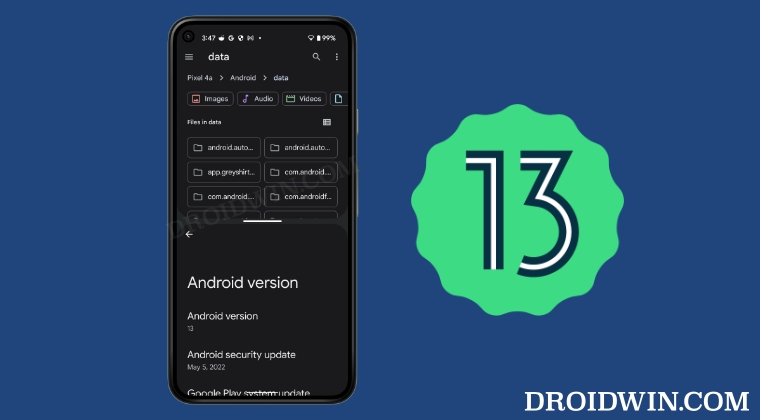
                          Anyway, I found a "trick" that allows reading and writing to the /Android/data/co.companionlink.clusbsync/files folder. It uses the internal (hidden on some devices) Android file browser. Google might plug this hole in the future, so I view it as only a temporary measure.

                          In this comprehensive tutorial, we will show you the steps to access the Data and OBB folder in Android 13 and transfer files in them.


                          Having confirmed that I can now use this (albeit clumsy) method to read and write to the Deja Office data path again, I decided to do some experimenting. First I made a manual copy of the Files folder.

                          Next I went into Deja Office Settings -> Logging and Support Settings -> Database Storage Location, and tapped "Emulated Storage". There was no confirmation and nothing seemed to happen. So I tapped "Local Storage (Legacy)". Again, no confirmation or anything. So I tapped "Local Storage (New)" and put it back where it was.

                          I restarted DejaOffice and it threw up a dialog saying the database could not be found (!), and a suggestion something about remounting the external SD card (!!!).

                          So, I opened the internal Android file explorer and sure enough the .db file was gone, as well as everything in the pictures and attachments folders. No panic. Using the double pane Android file explorer trick from above, I meticulously copied everything back to /Android/data/co.companionlink.clusbsync/files from a manual copy I had just previously made. DejaOffice launched and ran normally again.

                          Anyway, what happened?


                          Comment

                          • Thomas
                            DejaOffice Team Member
                            • Dec 2010
                            • 3008

                            #14
                            As I noted the Legacy storage would attempt to move everything to a folder that we can no longer create\have access too. You would only want Local New or Emulated, but I would only recommend Local New which would keep the files at the current /Android/data/co.companionlink.clusbsync/files. The Move to SD option should be in the Storage settings for the App on the Android, other than setting a specific folder for the Backups, we have to adhere to Androids' rules for file storage.
                            - Lead QA

                            Comment

                            • DejaJeff
                              Member
                              • Jul 2017
                              • 95

                              #15
                              Originally posted by Thomas View Post
                              As I noted the Legacy storage would attempt to move everything to a folder that we can no longer create\have access too. You would only want Local New or Emulated, but I would only recommend Local New which would keep the files at the current /Android/data/co.companionlink.clusbsync/files. The Move to SD option should be in the Storage settings for the App on the Android, other than setting a specific folder for the Backups, we have to adhere to Androids' rules for file storage.
                              Understand.

                              In light of this, since backups can be saved to a specific folder on the SD card, I would like to offer a suggestion.

                              When making a manual backup, the use is currently presented with option checkboxes to backup...
                              • Include Database
                              • Include Contact Pictures
                              • Include Attachments

                              Automatic backups only appear backup the database file. Can you add the above options for automatic backups?

                              Comment

                              Working...