
It feels risky to change phones when important WhatsApp chats matter daily. Many users trust backups, believing everything will move without checking details. This creates stress when photos or messages disappear after restoring on devices. It happens because a WhatsApp backup is limited, outdated, or missing hidden data.
Understanding what a backup protects helps avoid surprises during phone switching. Yet, some people choose guided tools like Dr.Fone – WhatsApp transfer for clearer results. Hence, this guide explains backup limits, common mistakes, and how to transfer WhatsApp.
Part 1: What Does a WhatsApp Backup Really Mean for Users?
A WhatsApp backup is more like a digital copy of your chats and media. It stores all data types, including messages and call logs, on cloud storage linked to your account. Many users think this backup guarantees a full restore every time they switch phones. However, a backup is only a snapshot that depends on timing and settings. If your backup is outdated or incomplete, some messages might never return after a restore.
It serves as a helpful restore point, not a total replacement of your live account. Therefore, users confuse backup recovery with actual data migration or cross-platform transfer options. When you transfer WhatsApp to new phone, restoration success depends on how recent the backup is. Even a small gap can lead to broken conversations or missing pictures during restoration. So, reviewing your backup details before the switch is always a smart move.
Part 2: How Old or Incomplete WhatsApp Backups Affect Chat and Media Migration
Older or incomplete WhatsApp backups directly affect what data appears after restoring. Missing chats usually result from outdated backups that did not capture recent conversations. Media files fail when storage limits or network issues interrupt backup creation. This becomes clearer when learning how to migrate WhatsApp messages from Android to iPhone. So, the table below shows how backup issues change migration results:
| Backup Condition | What Happens During Migration | Result for Chats and Media |
| Recent and Complete Backup | Most data is restored correctly | Chats and media appear as expected |
| Old Backup | New messages are missing | Recent chats do not appear |
| Incomplete Backup | Some data was skipped during save | Media files may be missing |
| Storage is Full During Backup | Backup stops midway | Partial chats and broken media |
| Network Interruption | Backup not uploaded fully | Restore fails or stays incomplete |
Part 3: How to Validate Backup Quality Before You Switch Phones
Before changing devices, validate your WhatsApp backup to avoid missing data. Many users skip this step and face incomplete chats or lost photos later during restore. Checking your backup’s freshness, available storage, and correct account improves success rates. These small checks ensure fewer issues when you transfer data to new phone. The following section breaks each check before moving into your data:
1. Check the Backup Timestamp
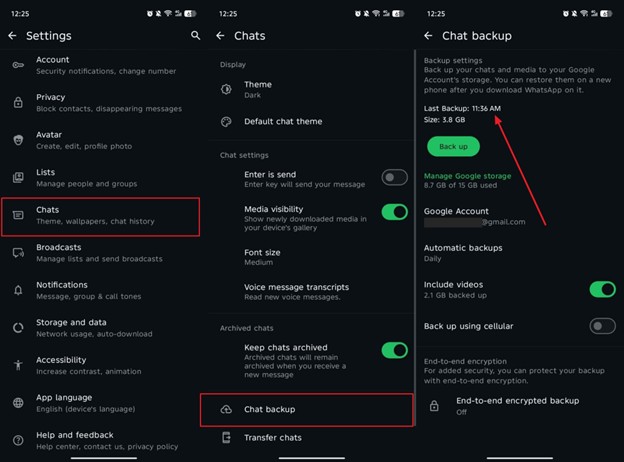
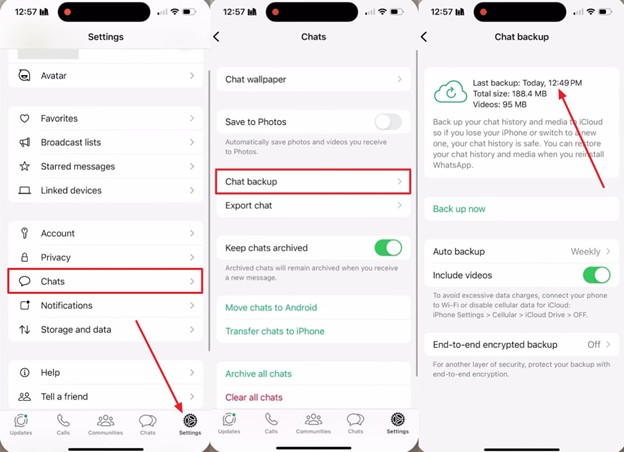
The backup timestamp shows when your WhatsApp data was last saved. An outdated time means recent messages and media were never included. If the backup is older than a day, create a new one to include recent messages. A fresh backup prevents missing content when you transfer WhatsApp to a new phone later. The following steps explain how to check and update this timestamp:
For Android: Access the app’s settings to go to the “Chats” section. Afterward, tap “Chat Backup” and then check the last timestamp of your backup.
For iPhone: When you navigate to the “Settings” section, tap “Chats” and access the “Chat Backup” option. Subsequently, you will be able to see the “Last Backup” time of your chat.
2. Verify Cloud Storage Availability
Every WhatsApp backup uses cloud space, either Google Drive or iCloud, depending on your phone. Before switching devices, check your cloud storage to ensure that there is enough free space remaining. If storage is nearly full, the backup might stop or skip large media files. So, free space or upgrade storage before backups to avoid partial data loss. This simple check prevents missing chats and multimedia after restoring WhatsApp.
3. Confirm Account Consistency
As we all know, WhatsApp backups are linked to your phone number and cloud account. Using different credentials prevents WhatsApp from detecting your saved backup file. During setup, always sign in with the same number and Google account. This step becomes critical when migrating WhatsApp messages from Android to iPhone. So, any mismatch causes restore failure, even if a backup exists online already.
Part 4: Why WhatsApp Backups Fail and What to Do When Restore Doesn’t Work
WhatsApp backups fail for various reasons, such as storage limits or network errors. These issues stop backups from completing, leading to restore problems on new devices. When users transfer WhatsApp to a new phone, failed backups cause missing chats. Below is a table to explain common failure reasons and safe actions in clear steps:
| Backup Failure Reason | Why It Happens | What Users Should Do |
| Insufficient Cloud Storage | Backup cannot finish uploading | Free storage or upgrade to a cloud plan |
| Unstable Internet Connection | Backup stops during sync | Use a strong Wi-Fi and retry the backup |
| Wrong Account Signed In | Backup cannot be detected | Verify a Google or Apple account |
| App Outdated | Backup features may not work | Update WhatsApp before backing up |
| Interrupted Backup Process | Data was saved only partially | Restart the backup and wait until completion |
Part 5: Dr.Fone – WhatsApp Transfer as a Guided Alternative When Backup Alone Isn’t Enough
Many times, backups fail, leaving users unsure how to move chats forward. When backups are incomplete, a guided transfer solution becomes necessary for users. This is where Dr.Fone – WhatsApp Transfer offers a structured alternative approach. It transfers WhatsApp chats between Android and iOS without compatibility issues. The tool supports all chats, along with multimedia and attachments, across platforms.
Dr.Fone also ensures 100% data security while keeping your WhatsApp history consistent after migration. Besides, migration occurs up to 96% faster than conventional and traditional transferring processes. Alongside that, it even supports merging and restoring data across devices. Besides, WhatsApp Business chats migrate alongside personal chats without separation problems. Users can also preview backups before migrating to their new phone.
Key Features
- Fast Transfer: Delivers ultra-fast WhatsApp migration even for large media-heavy chat histories.
- Version Compatible: Works with the newest Android 16 and iPhone 26 operating systems.
- Selective Transfer: Allows choosing specific data types, like starred messages, before starting migration.
Manual to Move WhatsApp Between Phones via Dr.Fone – WhatsApp Transfer
Go through the given steps to transfer WhatsApp to a new phone smoothly using Dr.Fone:
Step 1. Open the WhatsApp Transfer Feature
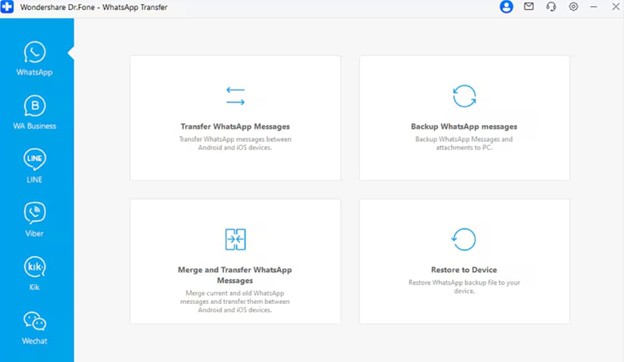
To initiate, head to the “Toolbox section and choose the “WhatsApp Transfer” feature. Attach both phones to your computer and opt for “Transfer WhatsApp Messages.”
Step 2. Choose WhatsApp Content for Migration
Upon connecting, browse through the available chats and data shown on the screen. Here, select the WhatsApp data you want to move and click “Transfer” to continue.
Step 3. Complete WhatsApp Data Transfer Process
The tool will begin sending the selected WhatsApp information to the new device.
Conclusion
In conclusion, backups remain essential, but they are not guaranteed for perfect restores. Validating timestamps and account details reduces many problems before switching devices. Still, some gaps appear when backups fail, are outdated, or miss hidden media. So, planning both a verified backup and a clear transfer method keeps chats safer. When you want smoother switching, Dr.Fone – WhatsApp Transfer gives a guided way to move everything.