

Formatting an SD card by mistake can erase far more than ordinary files. A single card may hold drone footage, GoPro clips, wedding videos, travel memories, client deliverables, or camera recordings that took hours to capture and may be impossible to recreate. That is why users search for ways to recover videos from a formatted SD card as soon as they realize the card was cleared too early. The good news is that formatted video files are often still recoverable if you stop using the card immediately and avoid writing new footage to it.
This guide explains what formatting really does, which free checks are worth trying first, where those methods fall short, and when a dedicated recovery workflow becomes the safer option. If your SD card contains MOV, MP4, MTS, AVI, or action-camera footage, speed matters because large video files are especially vulnerable to overwrite.
Part 1. What Happens When an SD Card Is Formatted
In many cases, formatting does not instantly destroy every video file block on the card. Instead, the file system structure is rebuilt and the storage space is marked as available for reuse. That is why formatted SD card video recovery is often still possible, especially after a quick format and before new footage is saved.
However, long videos and fragmented clips can be more sensitive than small image files. If the card has been reused for new recording sessions, even briefly, some footage may already be partially overwritten.
Part 2. Can You Recover Videos From a Formatted SD Card?
Yes, often you can. Quick formatting usually leaves a better data recovery window than heavy reuse of the card. If the card was formatted and then set aside, your chances are usually better. If the card was formatted and then used again for more shooting, the outcome may be partial, especially with large 4K, 5K, or drone video files.
For creators working with cameras, drones, dash cams, or action devices, a structured video recovery workflow is usually safer than repeated trial and error.
Recovery Outlook by Situation
- Quick-formatted card and no new footage recorded — often a strong recovery chance
- Formatted card used briefly afterward — partial recovery may still be possible
- Card shows read errors or corruption — mixed outcome depending on file damage
- Large fragmented video files — harder to restore fully than smaller files
- Heavy overwrite after formatting — low chance for full footage recovery
Part 3. What to Try Before Using Recovery Software
Method 1: Check Whether the Videos Were Already Copied
Before scanning the SD card, check your editing folders, desktop exports, external SSD, NAS backup, cloud sync folder, or previous transfer destination. Many users think a formatted card means total loss when the footage was already copied earlier.
Method 2: Test Another Reader or Port
Sometimes a card seems empty or broken after formatting, but the real issue is a weak adapter, unstable USB connection, or faulty reader. Testing another reader is a safe first check and can help rule out access problems.
Method 3: Avoid Reformatting or Repairing Again
Do not format the SD card again just to see whether it works. Avoid repeated repair attempts before recovery if the videos matter. Structural changes and extra writes can make large footage files harder to restore completely.
Limit: built-in checks are useful, but they usually do not provide deep scan, video preview, selective recovery, or good handling of large formatted footage files.
Part 4. Why Dedicated Video Recovery Software Is Often the Better Option
A specialized recovery tool gives you a safer workflow. Instead of changing the SD card again and again, you can scan it, review recoverable file types, preview available clips, and save restored videos to another drive. That matters because formatted video recovery is often a race against overwrite and fragmentation risk.
For users who want a guided option, Wondershare Recoverit makes sense because it is built for deleted, formatted, corrupted, and inaccessible storage scenarios. It is especially useful when the missing files include large video clips mixed with other media.
Method Comparison
- Check copied footage or backups — fastest and free — only works if another copy already exists
- Try another reader or device — useful for access checks — does not recover formatted videos by itself
- Use repair or reformat actions — risky before recovery — may reduce footage recovery success
- Use recovery software — best for scan, preview, and controlled restore of formatted video files
Part 5. Recoverit for Formatted SD Card Video Recovery
Recoverit fits this keyword well because formatted-card video loss often involves large files, removable media, and high-value content. A good recovery tool should do more than list recovered filenames. It should help users identify clip types, preview what is usable, and restore only the footage they need.
If you want a more practical memory card video recovery solution, it should support removable storage, common video formats, preview before recovery, and a workflow that stays manageable for non-technical users. Recoverit covers those needs while remaining useful for camera, drone, and action-footage scenarios.
Why Recoverit Is Worth Considering
- Supports SD cards, microSD cards, CF cards, and other removable media
- Works with MOV, MP4, AVI, MTS, and other common video formats
- Preview helps confirm whether formatted-card videos are still usable before recovery
- Selective restore saves time and avoids recovering unnecessary files
- Useful for formatting, deletion, corruption, and inaccessible-card scenarios
- Beginner-friendly workflow reduces mistakes during urgent footage-loss situations
Part 6. 3 Steps to Recover Videos From a Formatted SD Card
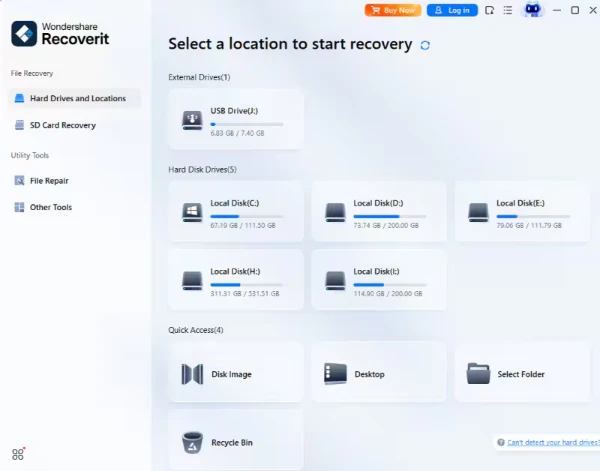
Step 1: Connect the Formatted SD Card and Select It
Insert the SD card with a stable reader, open Recoverit, and choose the formatted card from the device list. This step ensures you scan the correct storage source instead of another drive.
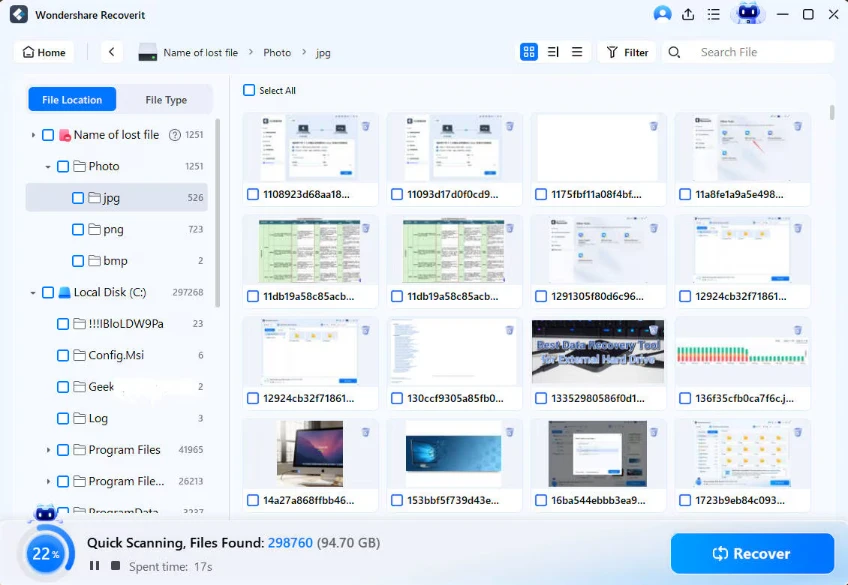
Step 2: Scan the Card for Lost and Formatted Videos
Start the scan and let the software search for deleted, hidden, and formatted footage across file categories. During this stage, the tool identifies recoverable video clips that may still exist before they are overwritten.
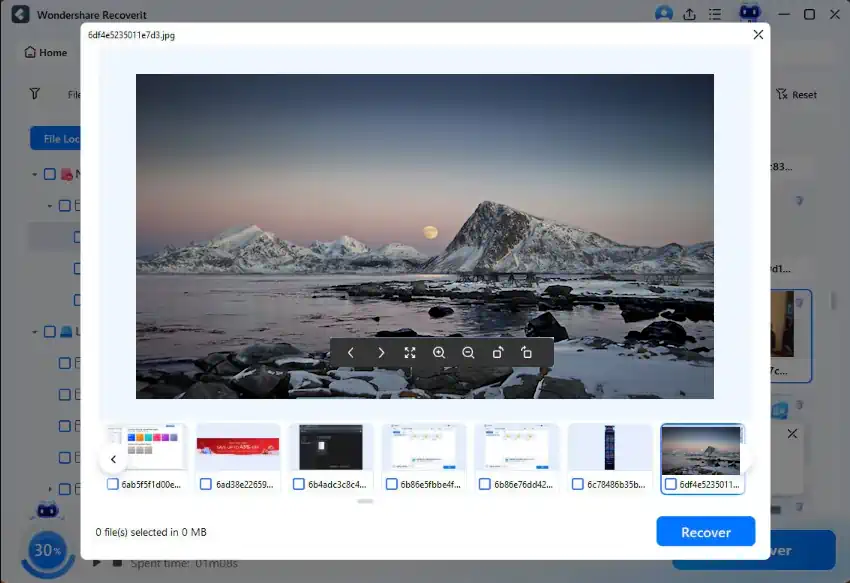
Step 3: Preview and Recover Videos to Another Drive
Preview the clips you want back, then save them to your computer or another external drive. Do not recover videos back to the same SD card, because that can overwrite other missing footage and reduce your remaining recovery chance.
Why Choose Recoverit
Good fit for camera, drone, dash-cam, and action-video recovery scenarios
Strong support for both standard clips and larger footage files
Preview and selective restore provide more control than blind recovery attempts
Practical for formatted, deleted, corrupted, and inaccessible SD card cases
Conclusion
If you need to recover videos from a formatted SD card, the safest strategy is to stop using the card, avoid repair-first mistakes, and scan it with a tool designed for removable-media recovery. Free checks are still worth trying, but they do not solve every formatted-footage situation. When the missing clips matter, a guided workflow like Recoverit is usually the more practical option.